1
Describe
Upload your photo and tell AI what edits you want - remove background, add text, adjust colors.

How It Works
Upload your photo and tell AI what edits you want - remove background, add text, adjust colors.
AI applies your changes while keeping the rest of your image intact.
Fine-tune with additional prompts, add more text, or adjust colors manually.
Export at 1280x720 HD. No watermarks. Ready for YouTube upload.
Testimonials
I have tons of photos from shooting my videos. Just needed a way to turn them into proper thumbnails without learning Photoshop. Upload, add text, done. Exactly what I needed.
Marcus Thompson
Lifestyle vlogger, 78K subs
My iPhone photos are better than any AI can generate. This lets me use my real photos and just add the polish. Background removal is insanely fast.
Sophie Chen
Travel channel, 134K subs
Screenshot from my video, remove the messy background, add bold text. Takes me 3 minutes now. Was spending 30 minutes in Canva before.
David Park
Tech tutorials, 56K subs
The auto-resize to YouTube dimensions is clutch. I was always guessing before and my thumbnails would get cropped weird. Now it just works.
Emma Rodriguez
Cooking channel, 89K subs
Examples
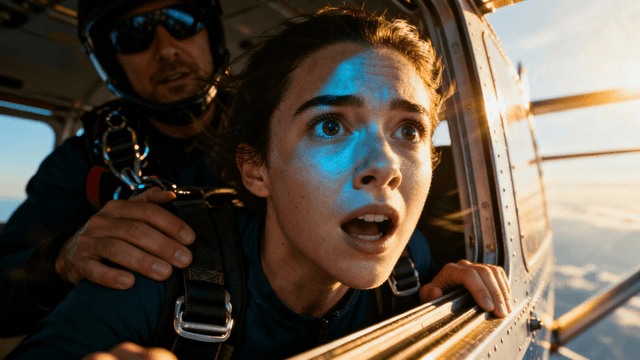
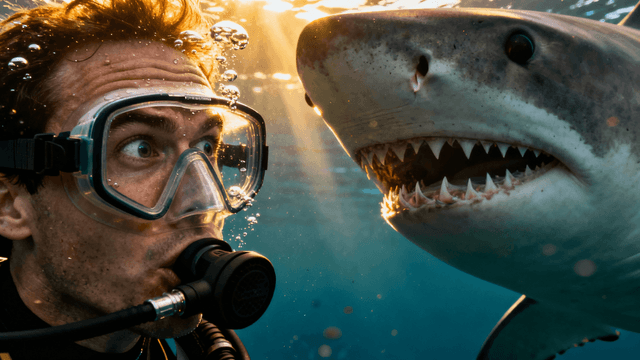
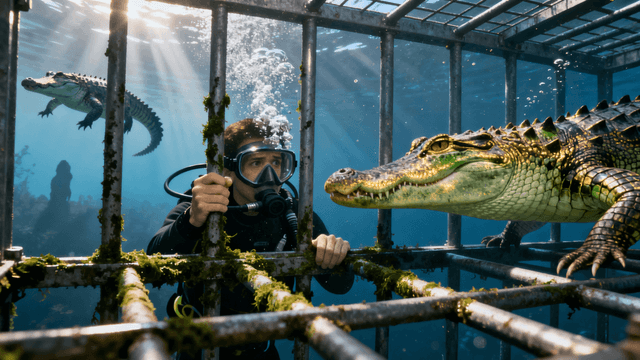
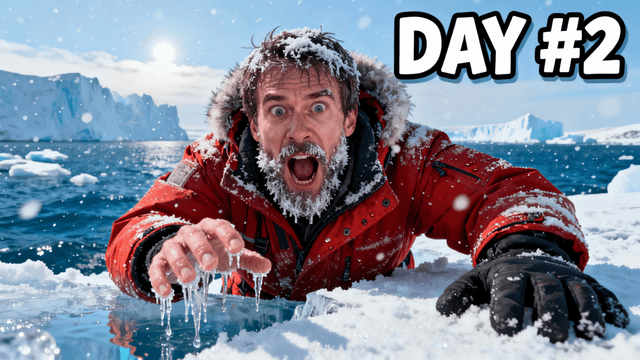
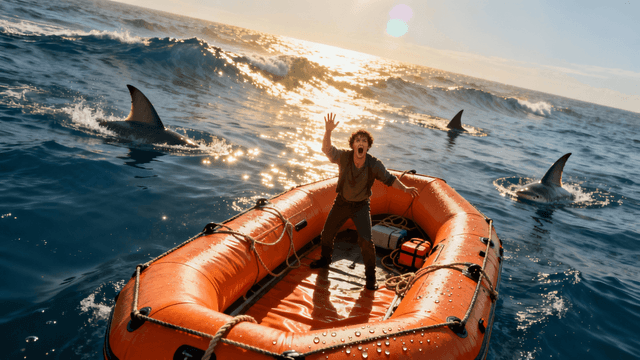
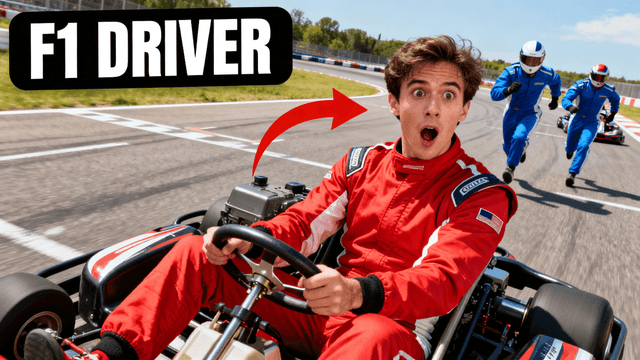
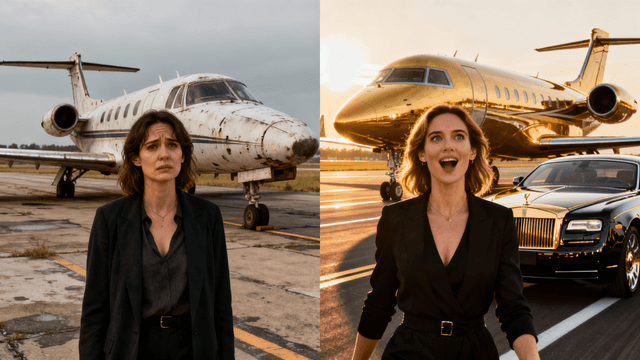
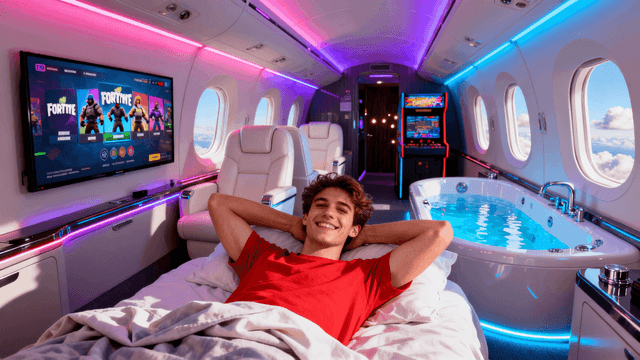
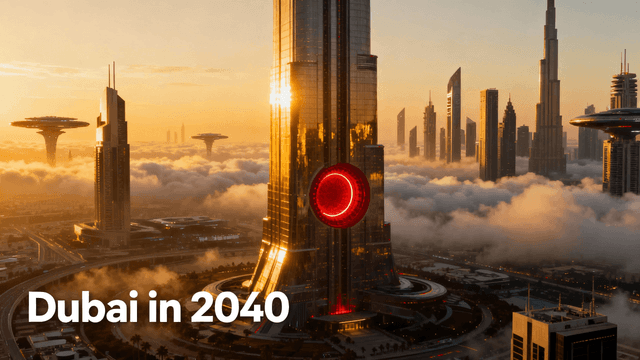
Real make thumbnail from image examples from creators

Who It's For
Creators who already have great photos but need to turn them into thumbnails
Vloggers and lifestyle YouTubers who film themselves and have plenty of footage
Anyone who prefers using real photos over AI-generated images
Channels that want authentic personal photos rather than stock imagery
Benefits
Use vacation photos, event screenshots, product images, or video frames. No need for stock photos or AI generation when your existing images capture the right moment.
Full-resolution processing maintains sharpness and detail. No compression artifacts or quality loss during editing and export, unlike free online compressors.
Simple edits transform casual photos into professional thumbnails. Add text, boost colors, remove distractions, and export - total time under 5 minutes per thumbnail.
Personal photos feel more genuine than stock images or AI generations. Viewers connect better with real moments and authentic expressions from actual content.
Try These
“Clean solid color background in bright red for placing a cutout photo on top, simple flat color, no gradients, space for subject overlay”
“Dramatic spotlight effect background with dark edges and bright center, perfect for placing a photo cutout, theatrical lighting feel”
“Abstract colorful gradient background fading from orange to pink, modern trendy aesthetic, backdrop for photo overlay”
Creators searching for a thumbnail maker from image already have a photo they want to use. They don't need a full design tool — they need a fast way to add text, clean up the background, and export at the right size. The problem with general photo editors is that they weren't built for this specific task. They don't have thumbnail-specific features like bold text presets tuned for small sizes, background removal optimized for subjects, or automatic 1280×720 sizing. A thumbnail maker from image does those specific things fast.
Thumbnail Studioo's YouTube thumbnail editor transforms your existing images into click-worthy thumbnails. Upload any photo, add bold text, remove backgrounds, adjust colors, and export at perfect YouTube dimensions. If you ever need custom backgrounds, our AI thumbnail generator creates them from text descriptions. Sign in to start editing your images.
Not all images are equally easy to turn into a thumbnail. Here's what to look for:
Best starting images: Close-up shots where the subject is clearly visible. Photos with a single clear focal point. Screenshots from your video that capture a high-energy or surprising moment. Images where the background is simple enough to remove or where the subject stands out naturally.
Harder to work with: Wide shots where the subject is small. Group photos with multiple equally prominent faces. Images with very busy backgrounds where the subject blends in. Very dark or very bright images where contrast editing is needed.
What to do with difficult images: If the background is distracting, use background removal to isolate the subject. If the subject is too small, crop tightly before adding text. If the lighting is flat, adjust brightness and contrast before exporting.
The goal is a thumbnail where one thing is immediately obvious at 200 pixels wide. If you can't tell what the main subject is at that size, the image needs editing before it works as a thumbnail.
Step 1 — Clean the background. Upload your image and decide whether to keep the background, simplify it, or remove it entirely. For subjects in front of complex scenes, removing the background and placing the subject on a solid or gradient background often improves click-through rate because the subject pops more clearly.
Step 2 — Add text. Short, bold, readable. Three to five words maximum. The font should have weight. Use drop shadow or outline to separate the text from the background so it reads regardless of what's behind it. Always check how it looks at small size before exporting.
Step 3 — Crop and export at 1280×720. Make sure the main subject is in the safe zone, away from the bottom-right corner where the YouTube timestamp appears. Export at full HD — 1280×720 pixels. Any tool that exports smaller will give you a blurry thumbnail in YouTube's recommendation feed.
The whole process takes about 2 minutes for a straightforward image.
Background removal is one of the most useful edits for thumbnails but it's easy to overuse.
When it helps: The original background is busy and competes with the subject. You want to place the subject over a more dramatic setting. The background contains distracting text or interface elements. You want consistent branding across all thumbnails using a colored background.
When to keep the original: The background is already simple and doesn't compete with the subject. The setting is part of the story — a specific location or game environment. The original lighting is already good and removing the background would lose that quality.
After background removal: The edge may look sharp or artificial. Add a slight drop shadow behind the subject to ground it. Match the color temperature of the subject to the new background — a subject lit in warm tones pasted onto a cool blue background looks wrong even with clean edges.
Best Practices
Choose high-resolution source images for best results. Images under 1920px wide may look pixelated when scaled up to HD.
Focus on one main subject per thumbnail. Crop tight on faces, products, or key objects. Busy images confuse viewers.
Add text that complements the image, not repeats it. If your photo shows a surprised face, explain why they are surprised.
Remove busy backgrounds that distract from your subject. Use background removal to isolate your main element.
Boost color saturation and contrast for mobile visibility. Phone screens wash out subtle colors.
Common Mistakes
Using low-resolution phone screenshots that look blurry when scaled up. Start with the highest quality source image.
Forgetting to crop out irrelevant parts. Crop aggressively to show only what matters for your video topic.
Adding text that covers important faces or objects. Place text in empty spaces, not over your main subject.
Skipping color adjustments. Raw photos often look flat. Boost brightness and saturation for better results.
Uploading images in the wrong aspect ratio. Vertical or square images need significant cropping for YouTube.
Upload any image and transform it into a click-worthy YouTube thumbnail. Add text, adjust colors, remove backgrounds. Try free for 7 days with no watermarks.
Upload Image and Start EditingFree 7-day trial • Cancel anytime
FAQ
JPG, PNG, and WEBP files up to 15MB each. These cover all common image formats from phones, cameras, and screenshots. The editor converts everything to HD PNG or JPG for export.
No. The tool processes images at full resolution and only scales down during final export to HD. If your source image is HD or higher, quality stays sharp. Low-resolution sources will scale up, which may reduce quality.
Yes. Upload video screenshots and enhance them with text, color adjustments, and cropping. Many successful creators use mid-video screenshots showing exciting moments, then add bold text overlays for context.
Use AI editing - describe where you want text and what it should say. The AI adds it to your image while keeping the rest intact. Works great for titles, CTAs, and overlay text.
Yes. Click "Remove Background" after uploading your image. AI identifies the main subject and removes everything else in 3-5 seconds. Then add solid colors, gradients, or new background images to replace the original background.
No. The editor handles technical tasks like resizing, aspect ratios, and export formats automatically. You focus on creative decisions - what text to add, which colors to boost, and where to crop. Five-minute learning curve for basic edits.
More Use Cases