1
Start with AI or Upload
Type a description of your video and let AI generate thumbnail options. Or upload a screenshot you already have. Either way, you have a base image in seconds.
Testimonials
My workflow used to be: film, edit for 6 hours, panic about the thumbnail, grab a random screenshot, upload. Now I spend 5 minutes on the thumbnail and it is honestly the best investment of my entire upload process.
Jake Williams
Commentary creator, 112K subs
I tried Canva, Photoshop, even PowerPoint for thumbnails. All of them felt like I was using a chainsaw to butter toast. This is the first tool that felt built for the actual job.
Nina Patel
Education channel, 67K subs
Generated 4 thumbnail options with AI, picked the best one, tweaked the text color, and uploaded. Total time: 3 minutes. My old process took 45 minutes in Photoshop.
Sam Okafor
Finance creator, 29K subs
The version history feature is underrated. I make 3 variations of every thumbnail and swap them out after 48 hours if the CTR is below 5%. My channel growth doubled since I started doing this.
Tessa Lindgren
Lifestyle vlogger, 95K subs
Examples
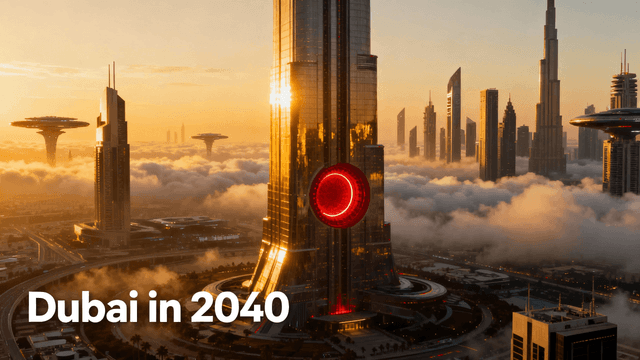
Real how to make a youtube thumbnail examples from creators









How It Works
Type a description of your video and let AI generate thumbnail options. Or upload a screenshot you already have. Either way, you have a base image in seconds.
Add your headline in big, bold letters. The editor snaps text to common positions so you do not have to eyeball the alignment.
Bump up the saturation, remove a distracting background, or add a color overlay. Small tweaks make a big difference in how much the thumbnail pops.
Export your thumbnail at 1280x720. The file is ready for YouTube Studio with no resizing or conversion needed.
Who It's For
Creators who need a thumbnail right now and cannot afford to spend 30 minutes on it
Weekly uploaders who need a fast, repeatable thumbnail workflow
YouTubers who know what they want but lack the design tools to execute it
Anyone tired of fighting with Photoshop layers just to add text to an image
Try These
“Shocked person holding up a phone showing a massive number on screen, clean white background with bold black text, reaction video energy”
“Overhead shot of a desk covered in cash and luxury items, warm golden lighting, aspirational wealth aesthetic for finance content”
“Two people facing each other in dramatic standoff pose, red versus blue color split background, debate or challenge video style”
Benefits
The reason most creators skip thumbnails is that the process feels like a chore. Opening Photoshop, finding the right font, figuring out export settings. By the time you are done, your creative energy is gone. A streamlined thumbnail tool keeps the process under 5 minutes, which means you actually do it consistently instead of reaching for a screenshot out of exhaustion.
AI generation gives you several thumbnail concepts from a single description. Instead of committing to one idea and spending 30 minutes building it, you can see 4 different directions in under a minute. Pick the strongest one and refine it. This is how professional design teams work, but without the team or the budget.
The worst thumbnails are the ones that feel disconnected from the actual video. A calm tutorial with an explosive red thumbnail confuses viewers and tanks watch time. When you describe your video to the AI or select a frame yourself, the result naturally matches the tone. Viewers click because the thumbnail promises something, and the video delivers exactly that.
Every thumbnail you create gets saved automatically. Upload version A to YouTube, check the CTR after 48 hours, and swap in version B if the numbers are flat. This is not guessing anymore. It is testing. And testing is how channels grow from 1,000 views to 100,000 views per video.
Thumbnail Studioo is built for exactly this workflow. Describe your video to the AI thumbnail generator and pick from multiple options, or upload your own image and use the thumbnail editor to add text and clean things up. No account setup required to try it. Sign in to save your work and build a version history.
Describe your video or upload a screenshot. Add bold text, adjust colors, and export at 1280x720. The entire process takes less time than writing your video description.
Make a YouTube Thumbnail NowFree 3-day trial • Cancel anytime
FAQ
Describe your video in one sentence to an AI thumbnail generator. It creates multiple options in seconds. Pick the best one, add or adjust text if needed, and export. The entire process takes 3-5 minutes. This is significantly faster than building from scratch in Photoshop or Canva, where template browsing alone can eat 10 minutes.
Yes. Browser-based thumbnail editors work on any device with a web browser, including phones and tablets. The interface is responsive and touch-friendly. That said, a laptop or desktop gives you more screen space to see fine details like text readability at small sizes. For quick edits on the go, phone works fine.
Focus on three elements: a clear face with a strong expression, bold text with 3-4 words maximum, and bright contrasting colors. These three things account for most of the difference between a 2% CTR and a 7% CTR. Study the top-performing videos in your niche and notice what their thumbnails have in common.
Consistency helps, but not at the cost of being boring. Use the same font and general color palette across your videos so viewers recognize your content in their feed. But vary the layout, expressions, and specific colors enough that each thumbnail feels fresh. Think of it like a TV show: same branding, different episode posters.
YouTube accepts JPG, PNG, GIF, and BMP files up to 2MB. PNG is the best choice because it preserves text sharpness and color accuracy without visible compression artifacts. JPG works too but can make text edges look fuzzy at high compression. Our editor exports in PNG at 1280x720 by default, which is the ideal setup for YouTube.