1
Pick Your Starting Point
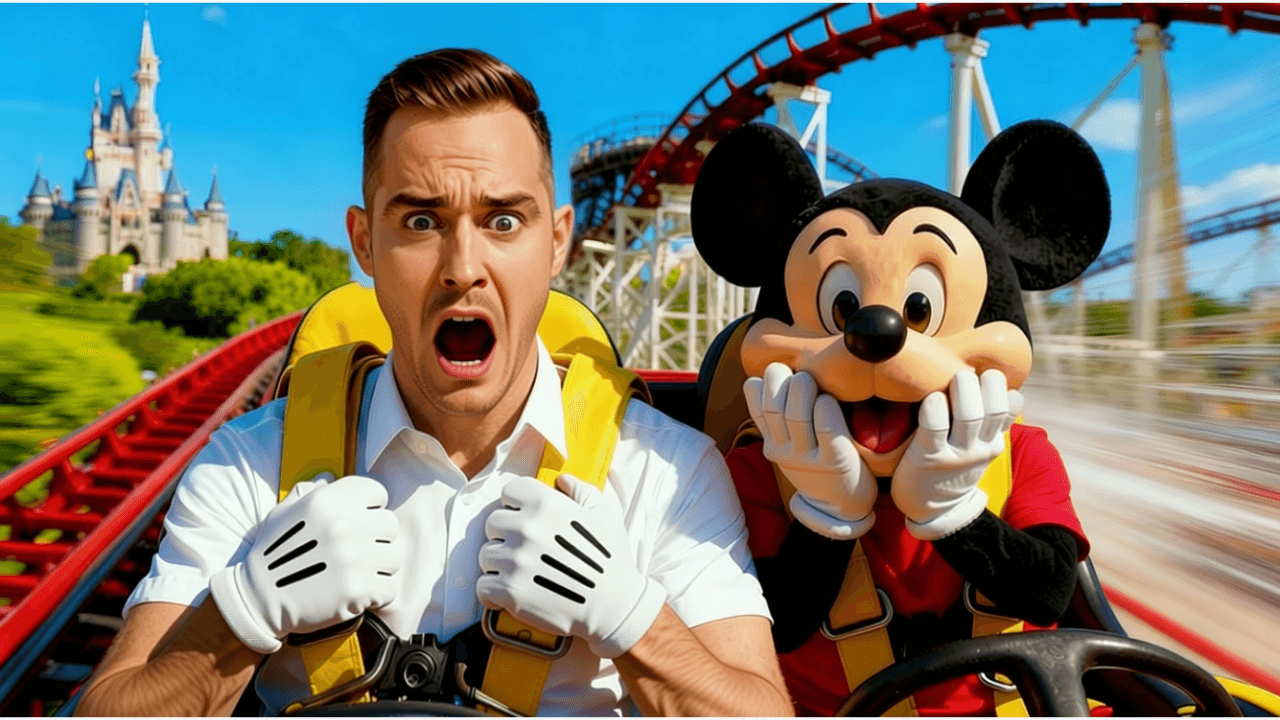
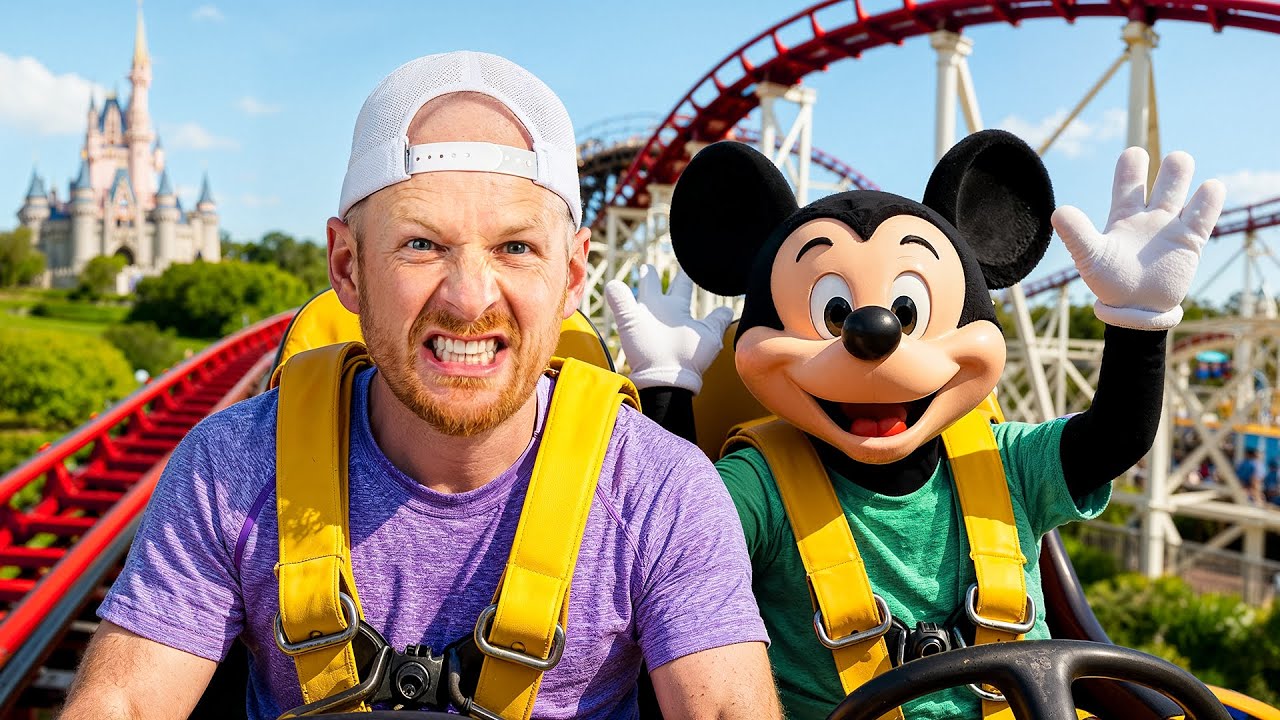
Upload a screenshot from your video or describe your thumbnail idea to the AI generator. Both options give you a solid base to work from.
See The Difference
Testimonials
I was using random screenshots from my videos as thumbnails for six months. Made my first custom thumbnail with this tool and the video got 3x more views than my channel average.
Derek Nguyen
Tech reviewer, 34K subs
The hardest part of making thumbnails was always getting started. Having AI generate a base design and then tweaking it myself saved me from staring at a blank canvas.
Rachel Morrison
Fitness creator, 78K subs
Switched from auto-generated thumbnails to custom ones and my average CTR went from 2.1% to 6.4% within two months. Should have done this from day one.
Carlos Mendes
Travel vlogger, 52K subs
I spent years thinking thumbnails required Photoshop skills. Turns out you just need the right tool and 5 minutes. My cooking videos finally get the clicks they deserve.
Priya Sharma
Cooking channel, 41K subs
Examples
Real how to make a thumbnail for youtube examples from creators
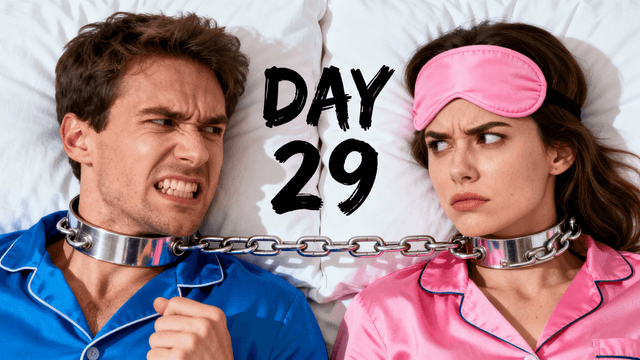
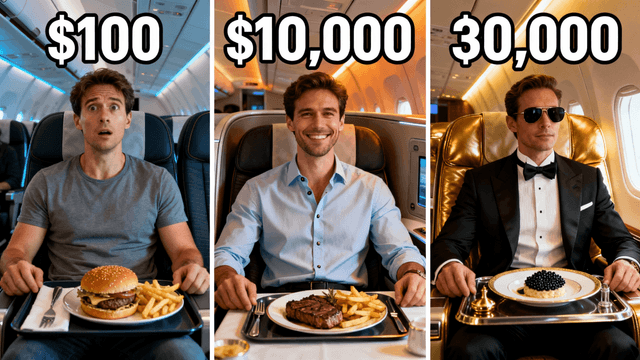
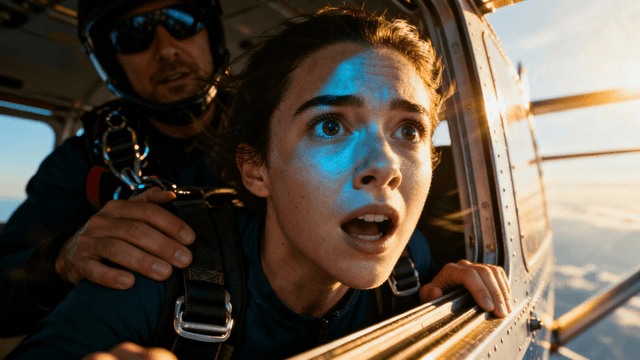
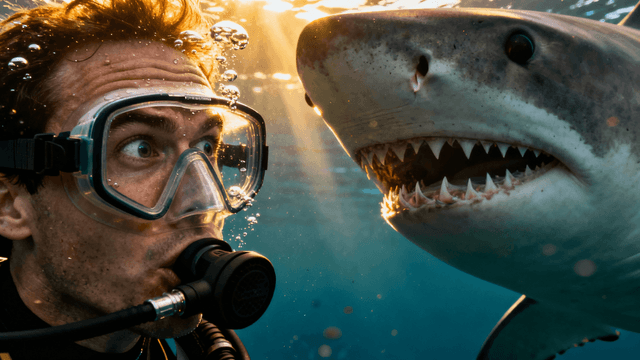

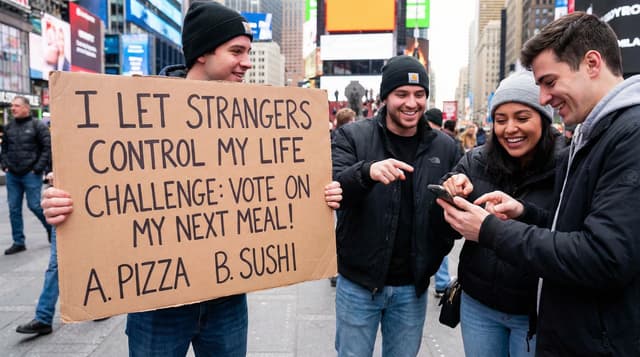
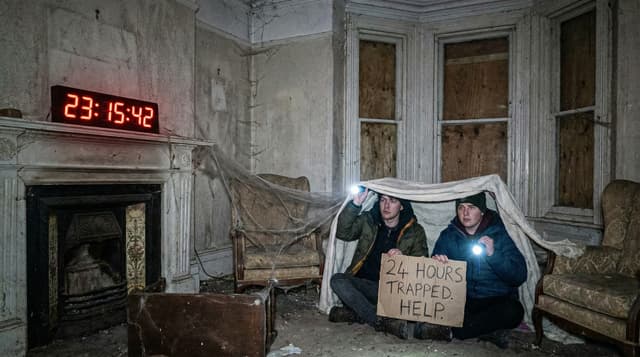
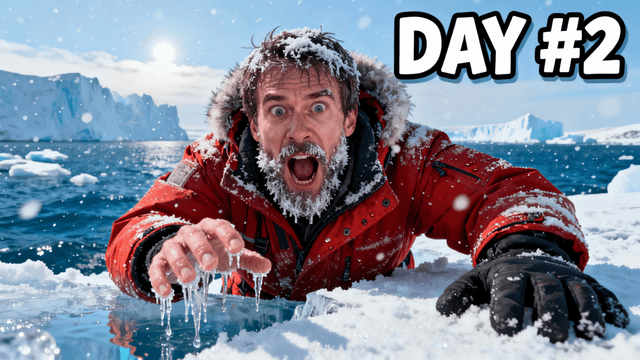

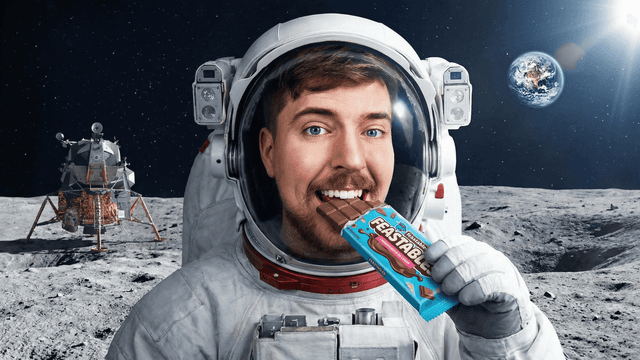
YouTube has one recommended thumbnail spec. Everything else is noise.
| Setting | Value | Why It Matters |
|---|---|---|
| Width | 1280px | Standard HD width, looks sharp on all screens |
| Height | 720px | 16:9 ratio, matches YouTube's player dimensions |
| File format | JPG or PNG | JPG for photos, PNG if you need transparency |
| Max file size | 2MB | Above this, YouTube compresses and quality drops |
| Aspect ratio | 16:9 | Any other ratio gets letterboxed or cropped |
1. A clear subject. One thing in the frame that the eye goes to immediately. A face, an object, a scene. Not three competing things, one. If someone cannot describe your thumbnail in two words, it is too busy.
2. Readable text. 3–4 words max. Bold, high-contrast, visible on a phone screen at thumbnail size. The text should add information the image alone doesn't give, not repeat what the image already shows.
3. An emotional hook. Shock, curiosity, excitement, or stakes. Thumbnails with a neutral expression and plain background get scrolled past. The viewer needs to feel something in the half-second they scan past your video.
Get all three right and CTR goes up. Missing one of them is usually enough to explain a thumbnail that isn't working.
How It Works
Upload a screenshot from your video or describe your thumbnail idea to the AI generator. Both options give you a solid base to work from.
Type your headline in large, bold letters. Keep it to 3-4 words max. If you cannot read it on your phone screen, make it bigger.
Remove distracting elements or swap the background entirely. A clean background makes your subject and text stand out immediately.
Download your finished thumbnail in the exact resolution YouTube recommends. Upload it directly to YouTube Studio.
Who It's For
New YouTubers making their first custom thumbnail ever
Creators who have been relying on auto-generated screenshots from their videos
Anyone who tried Canva or Photoshop but felt overwhelmed by the options
Channels that want professional-looking thumbnails without hiring a designer
Try These
“Person standing in front of a massive pile of cash with shocked expression, bright yellow background, bold red text saying MONEY HACK, YouTube challenge style”
“Close-up of hands holding a gaming controller with neon lights reflecting off the screen, dark moody background, competitive gaming atmosphere”
“Split screen showing messy room on left and clean organized room on right, dramatic before and after transformation, satisfying contrast”
Benefits
YouTube shows your thumbnail to hundreds or thousands of people before anyone clicks. A blurry screenshot or a frame with your mouth half-open tells viewers your content is not worth their time. A custom thumbnail signals effort, quality, and that you actually care about the viewer experience. Creators who switch from auto-generated to custom thumbnails consistently report CTR jumps of 2-4 percentage points.
Most creators spend 4-8 hours editing a video and then rush the thumbnail in 2 minutes because they are tired. That ratio is backwards. Your thumbnail determines whether anyone sees those 8 hours of work. With AI generation and simple editing tools, you can create a scroll-stopping thumbnail in under 5 minutes. Spend those 5 minutes wisely and the rest of your effort actually pays off.
When viewers scroll through their feed and instantly recognize your style, that is brand equity working for you. Consistent fonts, colors, and layouts across thumbnails create familiarity. Familiarity builds trust. Trust leads to clicks without hesitation. Once you find a thumbnail format that works, replicating it for each new video takes even less time.
Viewers do not check subscriber counts before clicking a thumbnail. They click what looks interesting. A small channel with a sharp, clear, emotionally engaging thumbnail will outperform a million-subscriber channel with a lazy screenshot. Your thumbnail is the one place where production budget does not matter. Only design quality matters.
New YouTubers search this because they have no idea where to start. What size? What software? What goes on it? They want a quick answer, not a design course. Most land on Canva tutorials that take 30 minutes to explain a blank canvas. There is a faster way.
Thumbnail Studioo removes the learning curve from thumbnail creation. Use our AI thumbnail generator to describe your video and get a custom thumbnail in seconds, or upload your own screenshot and refine it with the YouTube thumbnail editor. Add bold text, swap backgrounds, adjust colors, and export at 1280x720. Sign in to make your first thumbnail.
Upload a screenshot or describe your video to the AI. Add text, clean up the background, and export at 1280x720. Your first thumbnail takes about 5 minutes.
Make a Thumbnail for YouTubeFree 3-day trial • Cancel anytime
FAQ
YouTube recommends 1280x720 pixels with a 16:9 aspect ratio. This is the standard across all devices. Uploading at this exact size prevents YouTube from cropping or stretching your image, which can make text unreadable and faces look distorted. Keep the file under 2MB so YouTube does not apply extra compression.
No. Photoshop is powerful but massively overkill for thumbnails. Most creators need three things: text overlays, background editing, and color adjustments. Dedicated thumbnail tools like Thumbnail Studioo provide exactly those features without the learning curve. You can make a professional thumbnail in 5 minutes instead of 30.
Three to four words maximum. Thumbnails appear tiny on mobile screens, which is where 70% of YouTube views happen. Long sentences become unreadable smudges at that size. Pick the most compelling phrase from your title and use that. If your thumbnail needs a paragraph to make sense, simplify your concept.
Faces with strong expressions consistently outperform faceless thumbnails. Human brains are wired to notice faces, especially ones showing surprise, excitement, or curiosity. If your content features you on camera, use a frame where your expression matches the energy of the video. Channels that added faces to their thumbnails report 20-40% CTR increases.
Yes. Go to YouTube Studio, select your video, and upload a new thumbnail. The change takes effect within a few minutes. Many successful creators swap thumbnails on older videos to test which version performs better. This is one of the easiest ways to revive underperforming content without re-editing the video itself.
Bright, saturated colors like red, yellow, and blue perform best because they contrast against YouTube's white and dark mode backgrounds. Avoid dark or muted tones that blend into the page. The goal is to make your thumbnail pop in a grid of competing videos. High contrast between your text and background is more important than any specific color choice.
More Use Cases