1
Describe
Upload your image at any size and tell AI how you want it framed for YouTube.
Examples
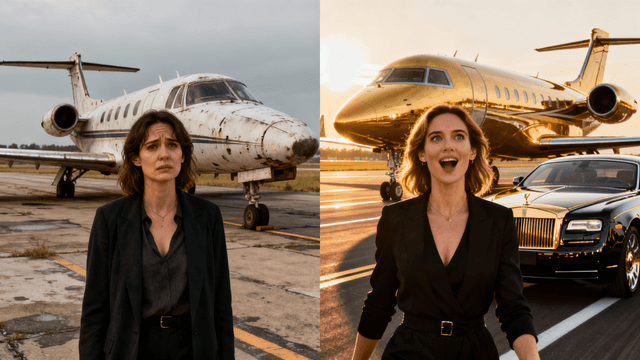
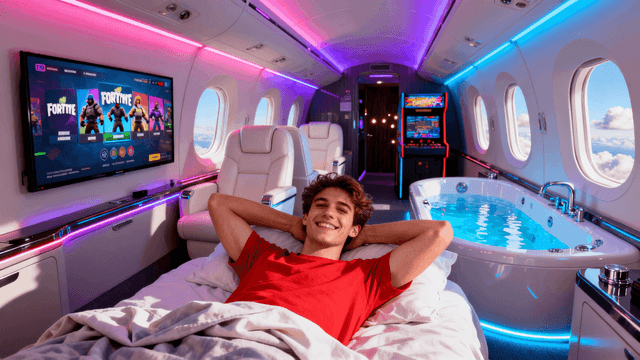

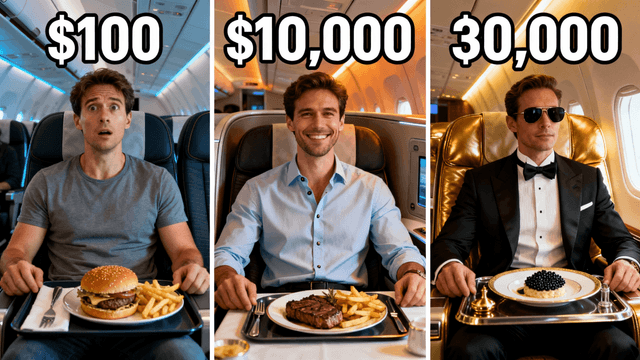
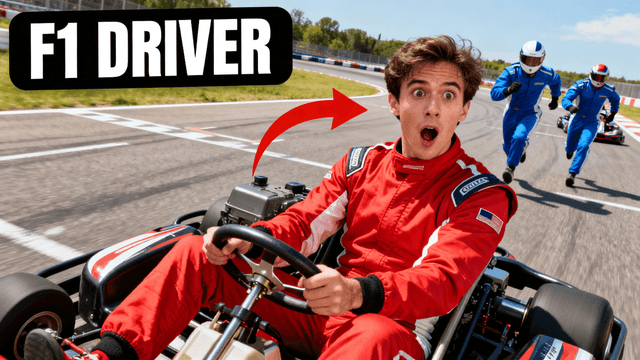
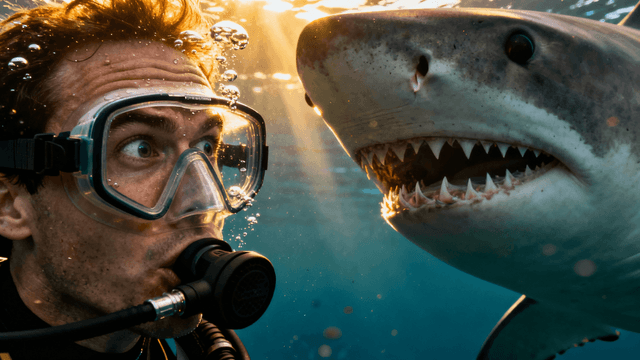
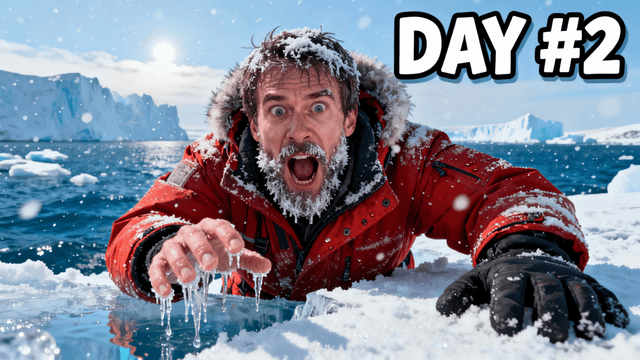
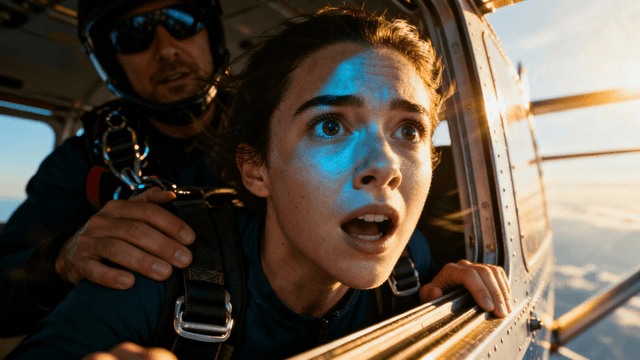
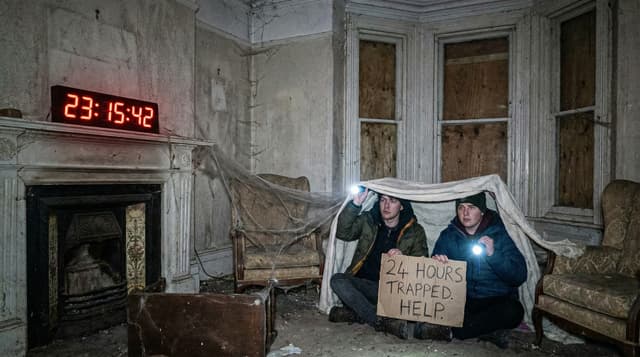
How It Works
Upload your image at any size and tell AI how you want it framed for YouTube.
AI crops or extends your image to fit 16:9 while keeping important elements visible.
Adjust framing, reposition, or make additional changes if needed.
Export at perfect 1280x720 dimensions. Ready for YouTube upload.
Who It's For
Creators with photos that are not the right dimensions for YouTube
Anyone uploading screenshots or frames that need to be 1280x720
YouTubers who want consistent sizing without manual math
Channels that need quick dimension fixes without Photoshop
Try These
“Take this portrait photo and create a 16:9 thumbnail, extend the background naturally to fill the sides”
“This image is too zoomed out, crop tighter on the person face and make them the main focus”
“The subject is off-center, reframe so they are positioned on the left with space for text on the right”
Benefits
Exports at 1280x720 every time. YouTube recommended size. No guessing.
AI suggests where to crop based on subject detection. Keeps faces and important elements visible.
Proper resampling algorithms. Your image stays sharp, not blurry or pixelated.
No software to install. Upload, resize, download. Done in under a minute.
1280x720 every time. Smart cropping. No quality loss. Takes 30 seconds.
Resize NowFree 3-day trial • Cancel anytime
FAQ
Tool will upscale it, but quality suffers. Best to start with images at least 1280x720 or larger.
Yes. Square images get cropped to 16:9 or you can add fill color on sides. Your choice.
Same options. Crop to 16:9 focusing on key area, or add fill on sides.
Downsizing keeps quality. Upsizing loses some. Start with larger images when possible.
Yes. Batch upload supported. Set crop rules and process multiple images together.
1280x720 pixels at 16:9 aspect ratio. Under 2MB file size. This tool exports exactly that.