1
Choose an Image
Upload a PNG, JPG, JPEG, or WebP thumbnail up to 3MB. The browser shows a local preview before processing.
Reviewed by Thumbnail Studioo · Updated 15 August 2026
Upscale a ThumbnailAuthenticated 2K upscaler
Your image stays in the browser until you press Upscale. Processing creates a 2560×1440 PNG and costs 2 credits.
AI thumbnail generator
Describe the thumbnail you want and generate it directly on this page.
Your thumbnail will appear here
Write a description and choose a style to get started.
Upscaling increases an image's pixel dimensions. Thumbnail Studioo resizes the source to 2560x1440 and preserves the 16:9 composition with a centered crop when needed. It does not invent facial detail, repair motion blur, or turn a tiny image into a genuinely sharp photograph.
A creator may have an older 1280x720 thumbnail, a compressed screenshot, or a finished design that now needs a larger export. Rebuilding the composition is wasteful when the immediate task is to resize the existing image and inspect the result before publishing.
Use the upscaler below to choose an image locally, preview it, and send it for authenticated 2K processing. The output is a 2560x1440 PNG and costs 2 credits. If the source also needs text, background, or composition changes, continue in the thumbnail editor.
How It Works
Upload a PNG, JPG, JPEG, or WebP thumbnail up to 3MB. The browser shows a local preview before processing.
Start with the sharpest file available. Upscaling increases dimensions but cannot restore detail lost to blur or heavy compression.
Authenticated processing resizes the image to 2560x1440 with Lanczos3 and returns a high-quality PNG. The operation costs 2 credits.
Inspect text edges, faces, and the crop before downloading the 2K result.
Examples
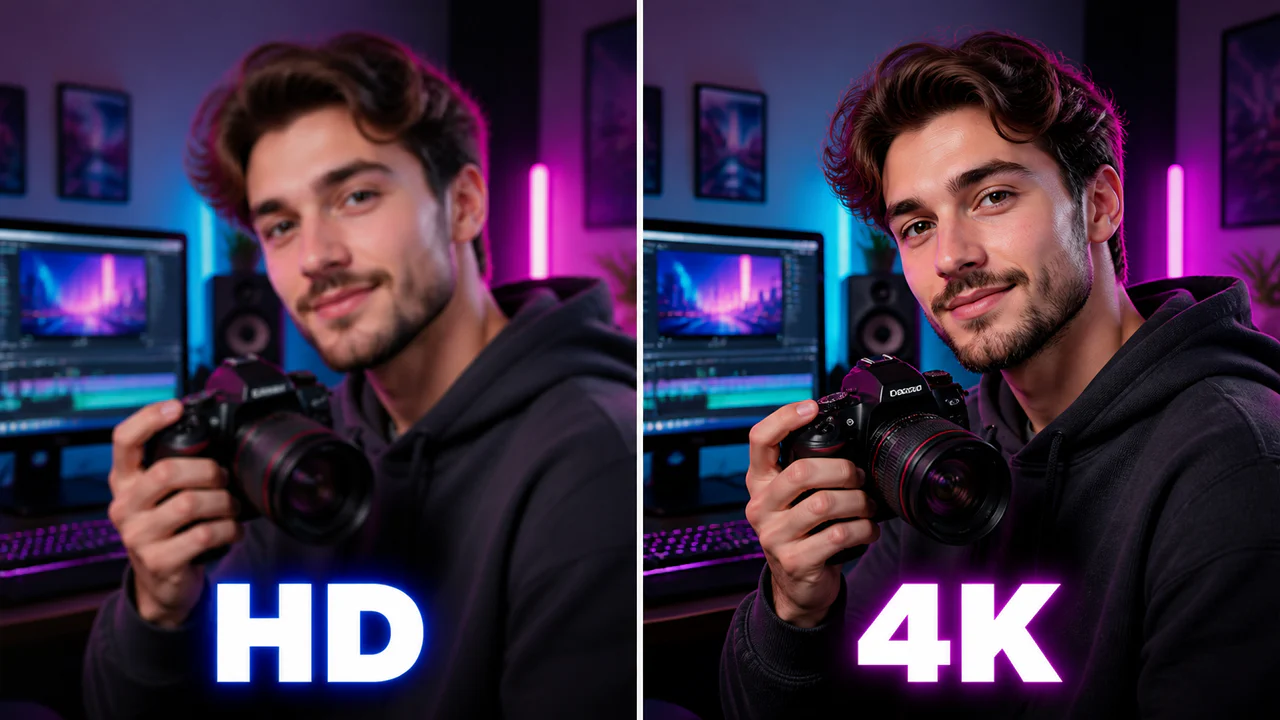
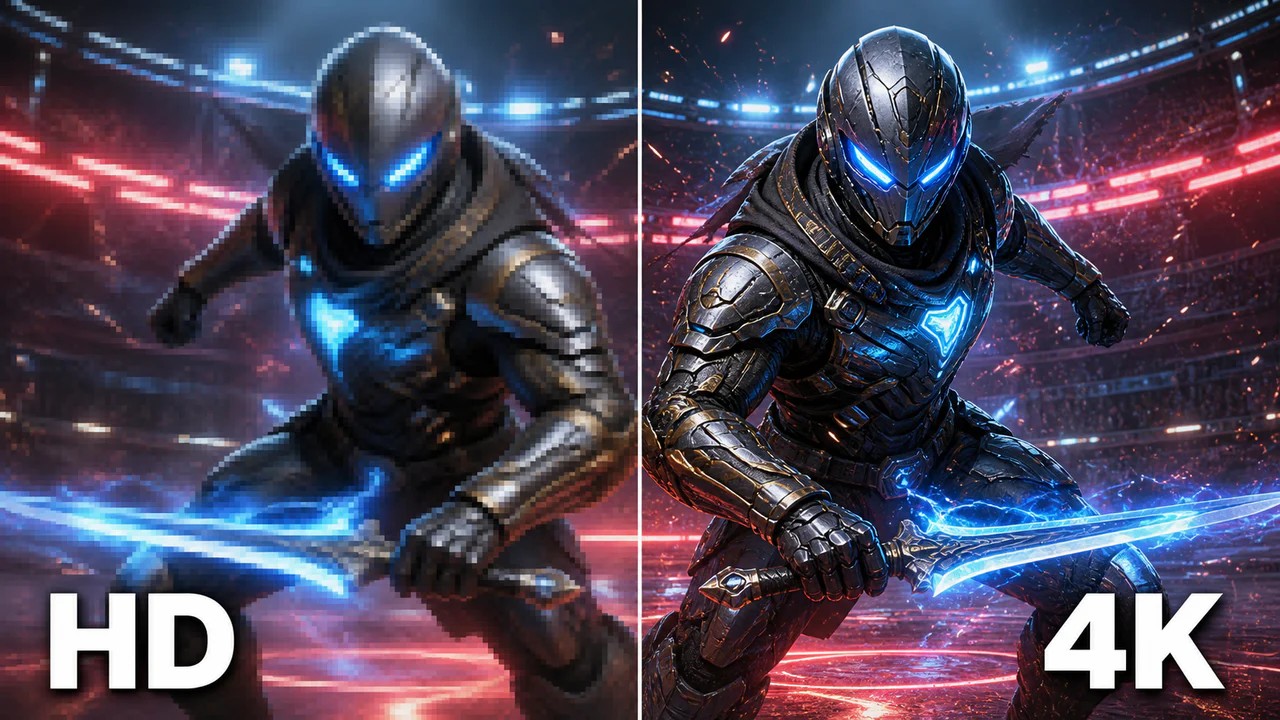
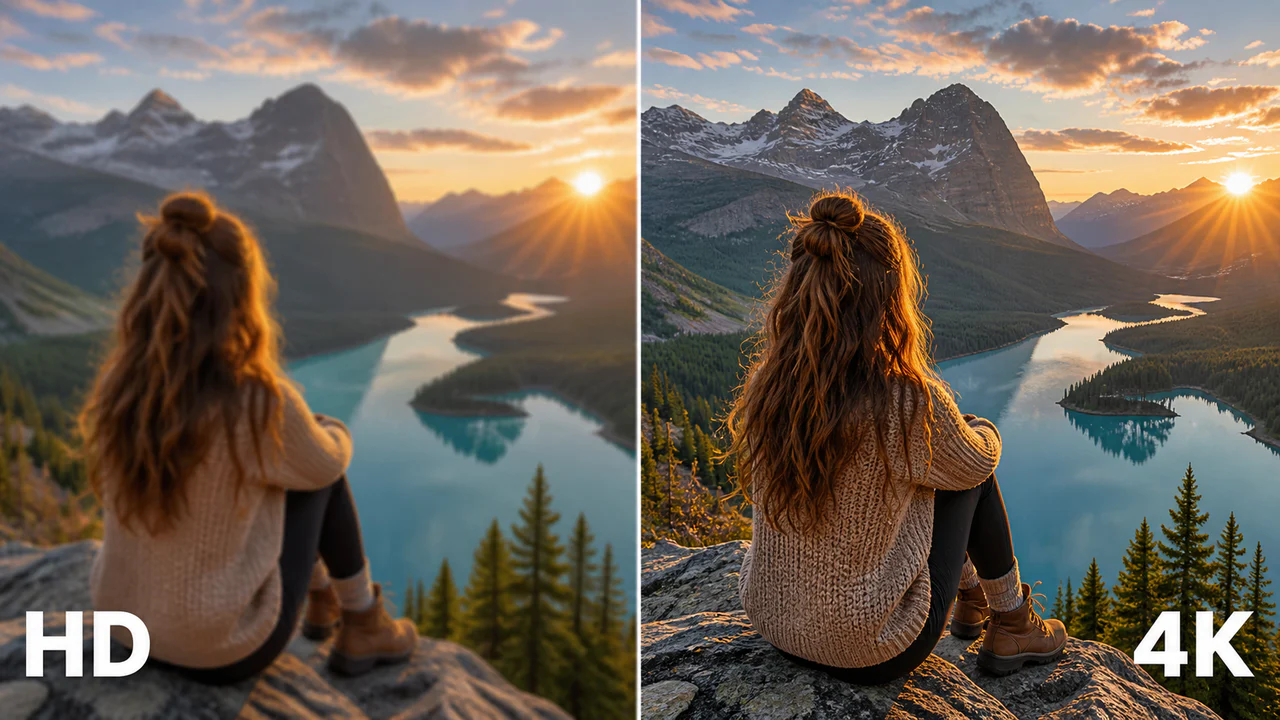
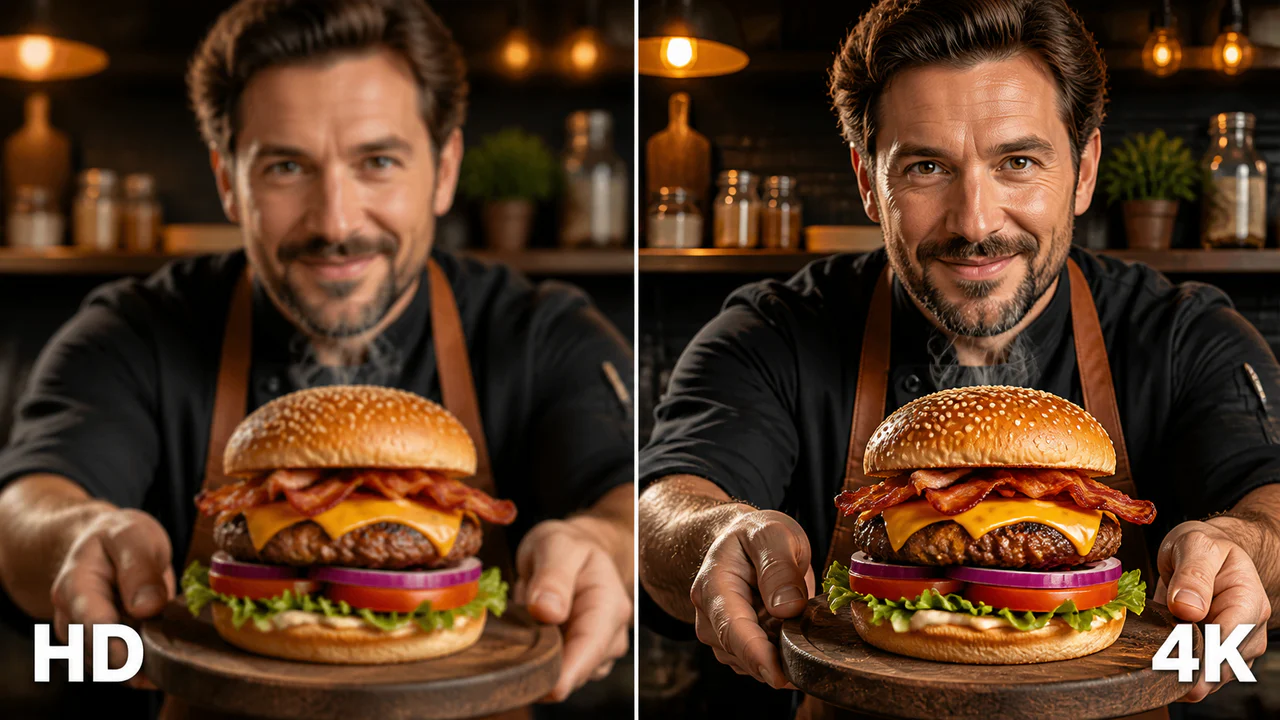
Who It's For
Creators resizing an existing 16:9 HD thumbnail to 2K
Channels refreshing older thumbnails without rebuilding the layout
Editors who need a PNG output at a known 2560x1440 size
Anyone who wants to inspect an enlarged result before downloading
Benefits
The output is always 2560x1440, which makes the result predictable for a 16:9 thumbnail workflow.
Lanczos3 resizing is used to preserve edges and gradients more cleanly than a basic browser stretch.
The tool does not claim to reconstruct missing detail. A sharp original will produce a better result than a tiny or heavily compressed source.
Compare the local source preview with the processed output before saving the final PNG.
Best Practices
Use the highest-resolution source you have. Upscaling a previously compressed download compounds visible artifacts.
Keep the source close to 16:9. A different shape is center-cropped to fill the 2560x1440 output.
Inspect small text and faces at 100% after processing; these areas reveal source-quality problems first.
Use the thumbnail editor before upscaling if the composition, text, or background still needs changes.
Save the original file separately so you can return to it if you want a different crop.
Common Mistakes
Treating an upscaler as a way to recover details that were never present in the source.
Uploading a vertical or square image without checking the centered 16:9 crop.
Using a screenshot of a compressed thumbnail instead of the original export.
Skipping the result preview before downloading.
Upscaling before finishing text and layout edits.
These are different jobs. Resizing increases the number of pixels in the file and uses surrounding pixels to calculate the enlarged result. Restoration attempts to infer or reconstruct lost information such as facial detail, fine texture, or blur. This tool performs high-quality resizing to a known 2K output; it does not claim restoration.
| Source | Likely Result | Recommended Action |
|---|---|---|
| Sharp 1280x720 export | Clean 2560x1440 resize | Upscale and inspect text edges |
| Compressed social-media download | Compression artifacts remain visible | Find the original export if possible |
| Small or blurry screenshot | Larger but still soft | Replace the source or rebuild key elements |
| Square or vertical image | Centered 16:9 crop | Crop manually in the editor first |
Upload the sharpest source available, process it to 2560x1440, review the result, and download a PNG.
Upscale a ThumbnailFree 3-day trial • Cancel anytime
FAQ
No. The current upscaler uses high-quality Lanczos3 resizing. It increases the image to 2560x1440 but does not invent facial features, remove blur, or reconstruct details that are absent from the source.
The output is a 2560x1440 PNG in a 16:9 ratio.
Yes. The processor uses a centered cover crop to fill the 2560x1440 output. Use a 16:9 source when you need to preserve the entire frame.
One upscale operation costs 2 credits and requires an authenticated Thumbnail Studioo account.
Use the sharpest original PNG, JPG, JPEG, or WebP file available. Avoid screenshots or files that have already been repeatedly compressed.